ADVANCE EXCEL

ADVANCE EXCEL

Excel Introduction

What is Excel?

Excel is pronounced “Eks – sel”

It is a spreadsheet program developed by Microsoft. Excel organizes data in columns and rows and allows you to do mathematical functions. It runs on Windows, macOS, Android and iOS.

The first version was released in 1985 and has gone through several changes over the years. However, the main functionality mostly remains the same.

Excel is typically used for:

  • Analysis
  • Data entry
  • Data management
  • Accounting
  • Budgeting
  • Data analysis
  • Visuals and graphs
  • Programming
  • Financial modeling
  • And much, much more!

Why Use Excel?

  • It is the most popular spreadsheet program in the world
  • It is easy to learn and to get started.
  • The skill ceiling is high, which means that you can do more advanced things as you become better
  • It can be used with both work and in everyday life, such as to create a family budget
  • It has a huge community support
  • It is continuously supported by Microsoft
  • Templates and frameworks can be reused by yourself and others, lowering creation costs

Get Started

This tutorial will teach you the basics of Excel.

It is not necessary to have any prior experience with spreadsheet programs or programming.

Excel Get Started

Office 365

The easiest way to get started with Excel, is to use Office 365.

Office 365 does not require downloading and installation of the program. It simply runs in your browser.

In our tutorial we will use Office 365, which can be accessed from www.office.com.


Install

Once you have successfully logged into Office through www.office.com, click on the Excel icon on the left side to enter the application:
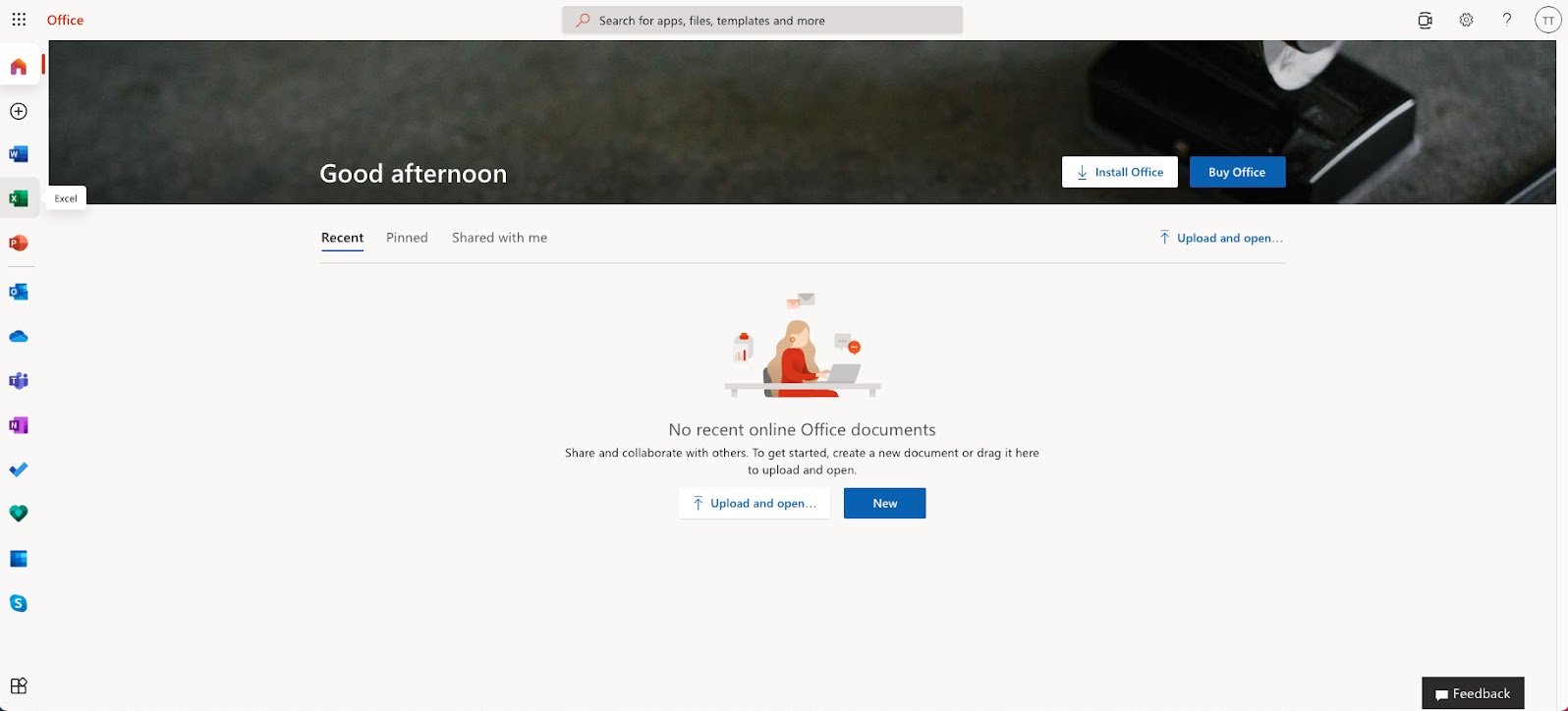
After entering the Excel application, click on the New blank workbook button to get started with a new workbook.
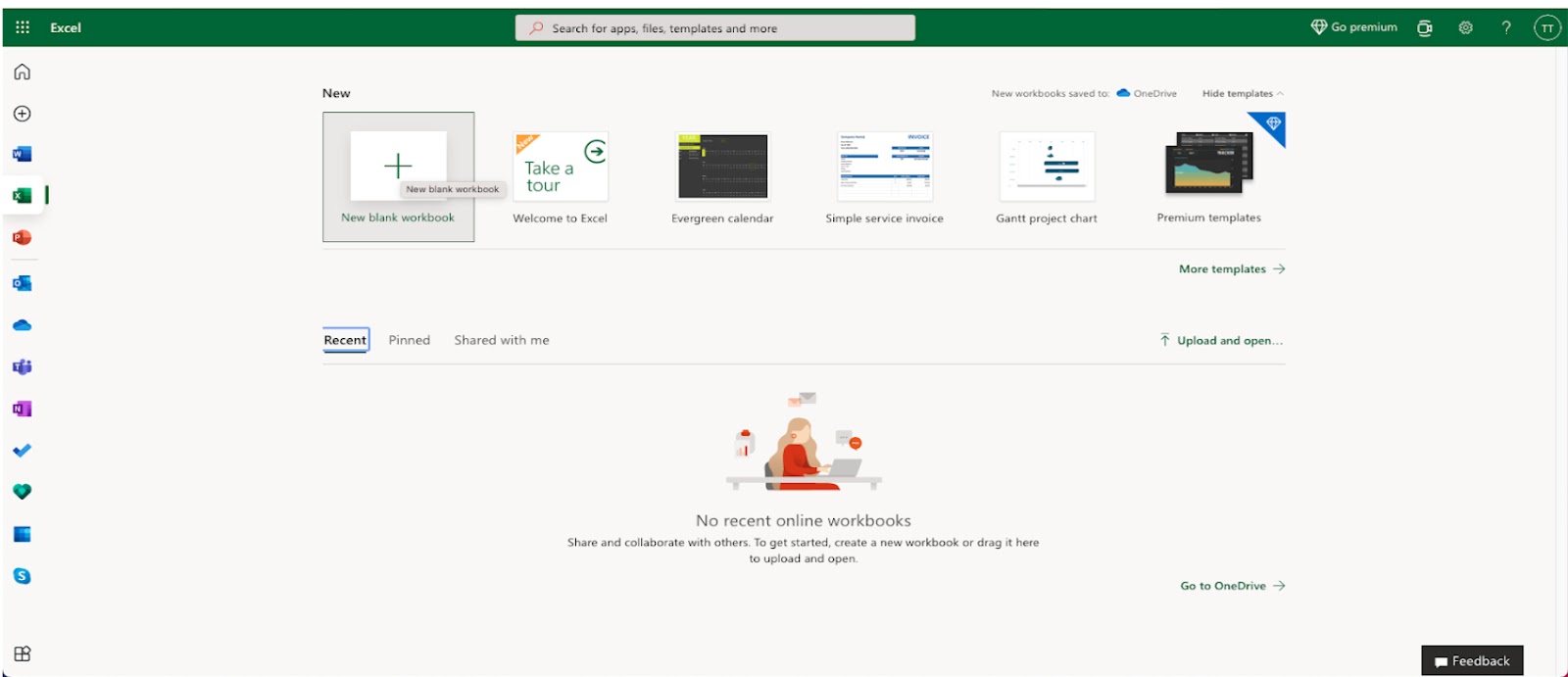
Enter a name for your workbook, and hit the enter button:
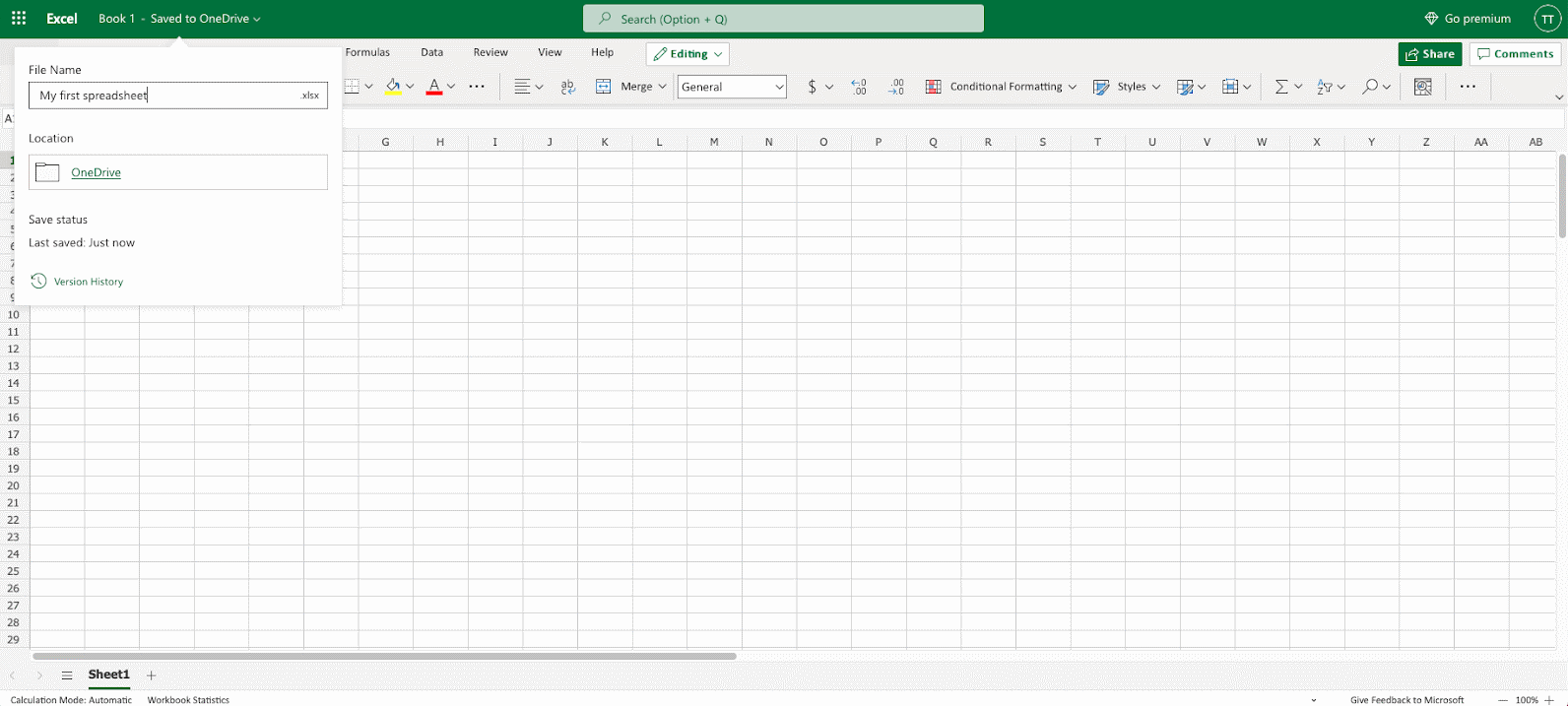
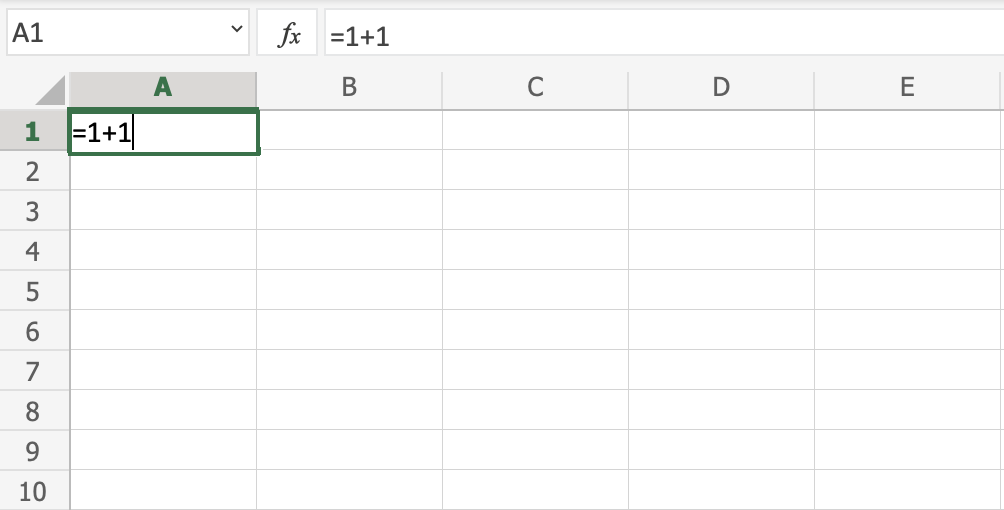
The Excel view has columns and rows, similar to a squared math exercise book.

Do not worry if the functionality looks overwhelming at first. You will get comfortable as you learn more in the chapters to come.

For now focus on the rows, columns, and the cells.

Ok. Let’s make a function!

  • First, double click the cell A1, the one that is marked with the green rectangle in the picture.
  • Second, type =1+1.
  • Third, hit the enter button:

Congratulations! You have typed your first function, 1+1=2.

Related Post

Leave a Reply

Your email address will not be published. Required fields are marked *